consumer electronics · Buying guide
USB-C Cable Buying Guide: Power, Data, and Video Explained
Two USB-C cables can look identical while supporting very different charging, transfer, and display capabilities. Here is how to read the useful labels.
At a glance
The short answer
Choose by workload: required watts, required Gbps, display or USB4 support, connector arrangement, and practical length. A universal-looking plug is not a universal performance guarantee.
- Who this helps
- Anyone choosing a cable for a laptop dock, external SSD, monitor, or fast charger.
- When this may not apply
- You only need a short replacement cable for a known low-power, USB 2.0 accessory.
- Main caveat
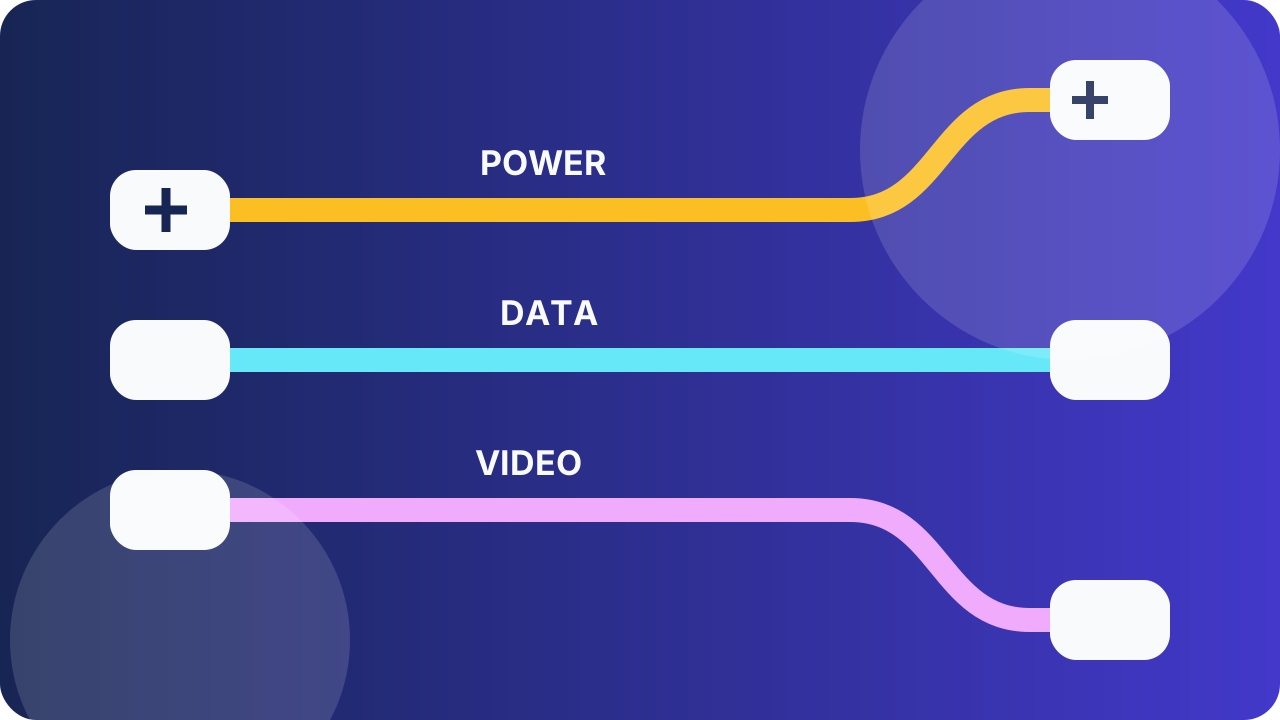
- Cable power, data speed, and video capability are related but not interchangeable specifications.
Why this guide matters
USB-C simplified the connector while leaving many optional capabilities behind it. That flexibility is useful, but it also makes vague listings risky: the wrong cable can charge slowly, bottleneck an SSD, or fail to drive a display even though it fits perfectly.
Separate power from data speed
USB-IF guidance explicitly distinguishes the USB-C connector from USB Power Delivery, USB 3.2, and USB4. A cable designed for USB 2.0 can still use USB-C connectors and support charging, yet its data path is limited compared with cables carrying certified 5, 10, 20, 40, or 80Gbps performance markings.
Start by deciding what the cable must do. Charging a phone, moving large video files, and connecting a laptop to a display-and-storage dock are three different workloads. Buying one cable for all three is possible, but only when its documented power and data capabilities cover all three.
- Charging-only use: prioritize the correct power rating and durability.
- External storage: match the slowest link among host, cable, enclosure, and drive.
- Dock or monitor: verify the required display mode as well as USB data and charging.
Read certified performance markings
USB-IF recommends consumer-facing data-rate names expressed directly in Gbps. A clearly marked certified cable is easier to evaluate than a listing built around historical generation names. For power, the certified USB-C cable classes are labeled 60W or 240W.
A large number printed on a listing is not enough by itself. Confirm that it applies to the exact cable length and connector variant you are ordering, and distinguish certification marks from look-alike marketing graphics. USB-IF maintains compliance programs because electrical and interoperability behavior cannot be established from appearance.
- Look for an explicit data rate such as USB 10Gbps or USB 40Gbps.
- Look for 60W or 240W power marking when charging matters.
- Verify USB4 or display support when the cable will sit between a computer and dock.
Length and the complete connection matter
Higher-speed signaling becomes harder over longer passive cables, so a long cable may support a lower data mode or use active electronics. Active cables can be excellent for a desk setup, but buyers should confirm compatibility, directionality if applicable, and whether all needed USB modes are supported.
The final connection operates at the best capability shared by the host, cable, and device. An 80Gbps-marked cable does not upgrade a 10Gbps computer port or enclosure. Likewise, a fast cable cannot provide display output from a host port that does not expose the required display protocol.
- Use the shortest practical cable for high-speed storage and docks.
- Confirm active-cable behavior before routing a long cable through a desk.
- Check every link in the chain instead of evaluating the cable alone.
Key considerations
- Power class
- Select 60W or 240W capability based on the device and charger negotiation you need.
- Certified data rate
- Match the stated Gbps class to the host and peripheral rather than buying on connector shape.
- Display and USB4 support
- For monitors and docks, verify the exact video and tunneling capabilities required by the setup.
- Length and construction
- Choose enough reach without adding unnecessary signal or cable-management compromises.
How we researched this guide
We used USB-IF’s naming, packaging, cable-certification, and USB4 guidance. We did not infer performance from materials, connector color, price, or unsourced marketplace claims.
Frequently asked questions
Does every USB-C cable support fast charging?
No. Power support varies, and the charger and device must also negotiate a compatible mode. Look for the cable’s explicit wattage rating.
Does every USB-C cable carry video?
No. Video requires compatible host, cable, and display or adapter capabilities. Connector fit alone is not evidence of display support.
Will an 80Gbps cable make a 10Gbps SSD faster?
No. The connection is limited by the slowest relevant component, including host port, cable, enclosure controller, and storage media.
Are charging and data labels the same thing?
No. USB-IF treats power capability and data performance as separate characteristics, so check both when you need both.
The takeaway
Choose a USB-C cable from a written requirement: watts, Gbps, display or USB4 support, connectors, and length. Prefer certified, plainly labeled cables and keep a small label on each cable you own so a capable cable does not become indistinguishable from a basic one.
Sources
Primary references checked by the editorial team. Product availability and standards may change.
- USB Type-C Naming and Packaging Recommendations — USB Implementers Forum (accessed 2026-08-29)
- USB4 Overview — USB Implementers Forum (accessed 2026-08-29)
- Cables and Connectors — USB Implementers Forum (accessed 2026-08-29)